We shipped a ton of things in Q4 and we’re proud and excited to present such a wide range of updates across the video platform, Live Studio and the our Meeting solution. In Q4 the quarter’s focus has been on three core values for users:
- Increasing audience engagement and impact
- Streamlining day-to-day workflows
- Strengthening reliability and security
Below is an overview of the key new features and, more importantly, the value they bring to you and your organisation.
Call to Actions for VOD: turn viewers into action-takers
What’s new
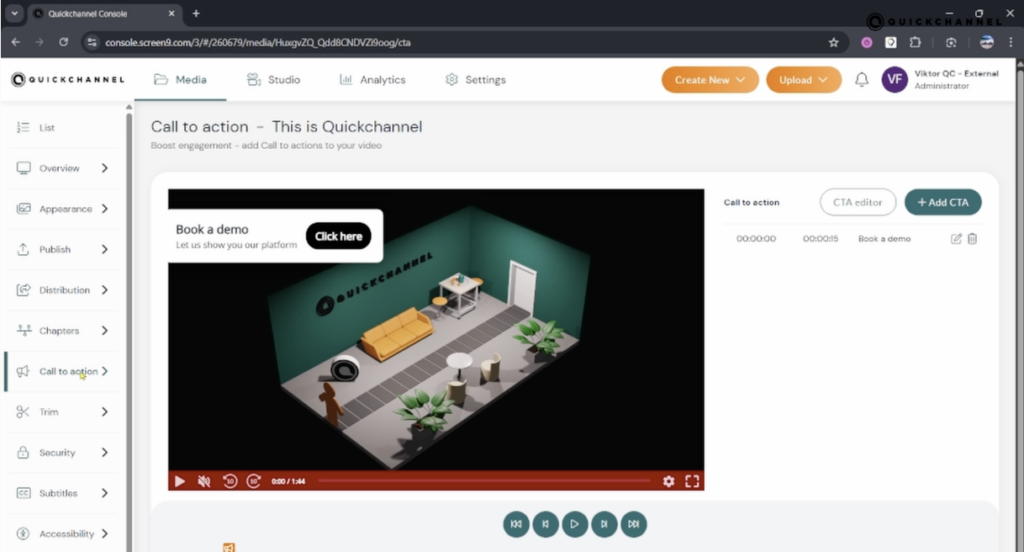
You can now add Call to Actions (CTAs) to video on-demand (VOD) content directly inside the Quickchannel video player. From any video in the Media section, there is a new “Call to action” menu where you can:
- Place interactive buttons at specific timestamps on the video timeline
- Configure title, description, button text, and link URL
- Control how long each CTA remains visible
Typical use cases include linking to:
- PDFs, whitepapers, or documentation
- Related or next-step videos
- Your videosite or main website
- Campaign landing pages or sign-up forms
Value for users
This transforms your videos from passive viewing into an interactive journey:
- Drive conversions by guiding viewers towards the next logical step (download, sign up, learn more).
- Reduce drop-off by surfacing relevant resources at exactly the right moment.
- Support sales, education, and onboarding flows with clear, guided actions embedded in the content.
Call to Action Editor (for Video Editor Licenses): fully branded interactivity
What’s new
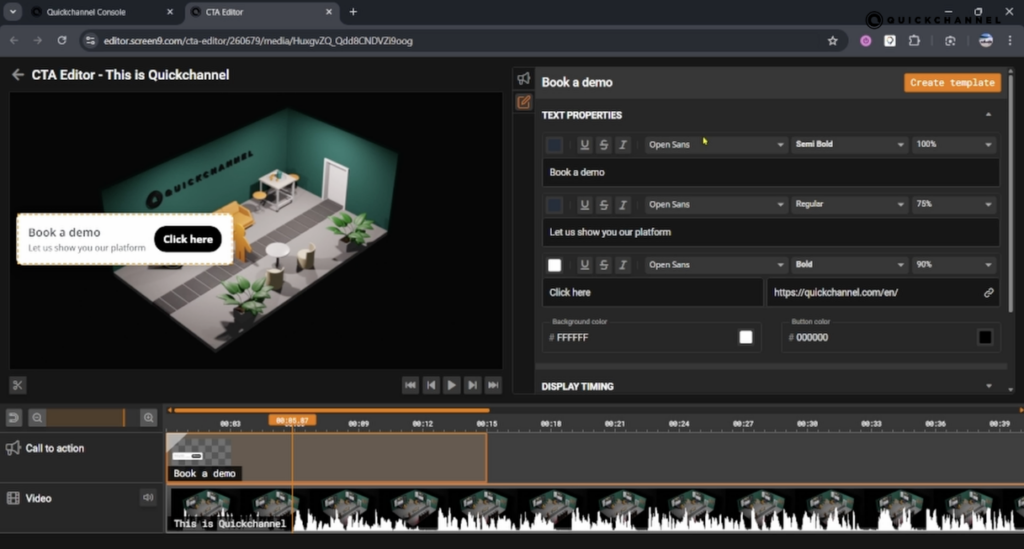
If your license includes the Quickchannel Video Editor, you now also have access to a Call to Action Editor. This gives you full control over:
- Fonts and text styles
- Text and background colors
- Positioning of the CTAs within the player
- Animations and transitions
- Multiple CTAs throughout a single video
Value for users
The Call to Action Editor lets you align interactivity with your brand and communication strategy:
- Maintain brand consistency across all video assets.
- Highlight priority messages or offers using animations and strategic placement.
- Design more engaging, polished experiences without relying on external tools or developers.
Optimized CTAs for Live Studio: precise timing for live events
What’s new
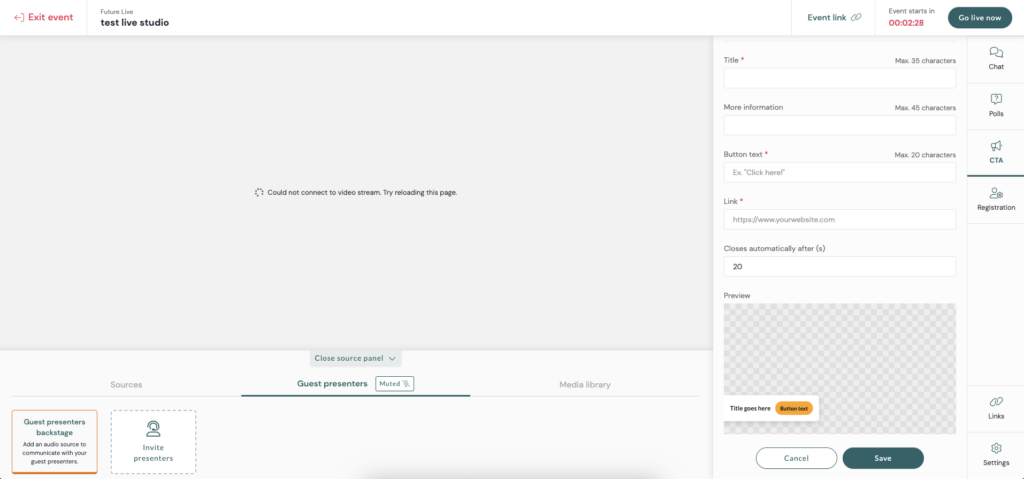
For live events produced in Live Studio, Call to Actions have been optimized so their timing is perfectly synchronized with the live event:
- When you click “Publish call to action” in Live Studio, that exact moment becomes the CTA timestamp in the event recording.
Value for users
This ensures that both live and on-demand audiences see CTAs at the most relevant moments:
- Better reuse of live content as on-demand assets, with CTAs already correctly placed.
- No need for manual adjustments post-event.
- Higher clarity for viewers as CTAs appear exactly when topics are discussed.
Videosite enhancements: improved branding and clarity
Customizable logo size and link
What’s new
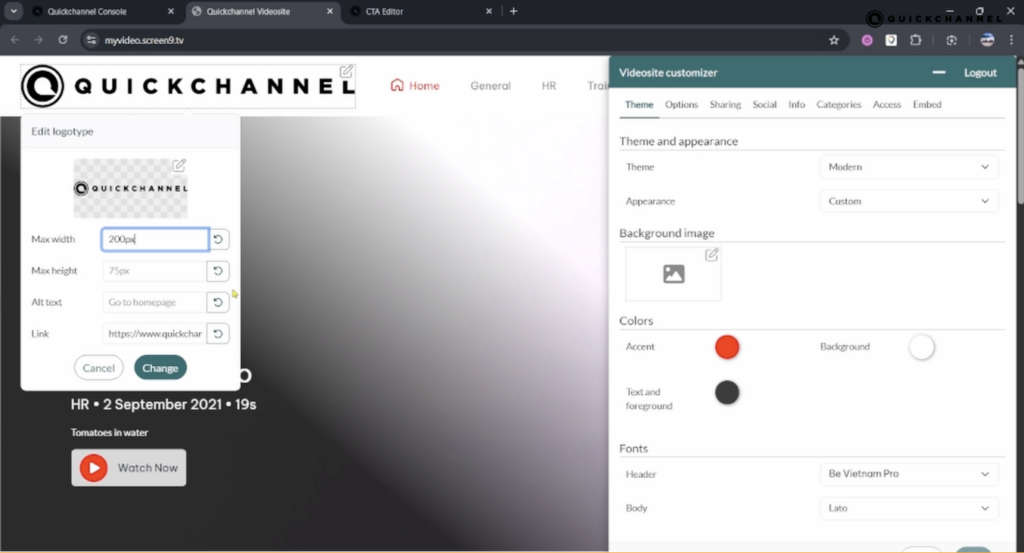
In Settings → Video Site → Admin view, you can now:
- Change the size of your video site logo
- Add a clickable link to the logo (for example, to your main website)
Value for users
This gives you more control over the branding and navigation of your video portal:
- Reinforce trust and familiarity for viewers.
- Ensure your logo appears at the right prominence and scale.
- Provide a clear, intuitive path back to your primary digital presence.
Display of Live Event date & time in overview
What’s new
For live events published on the video site, the date and start time are now shown directly in the overview list—no need to click into each event.
Value for users
This small change has a big impact on usability and clarity:
- Viewers can quickly see when each event starts at a glance.
- Reduces confusion and support queries about event time details.
- Makes your video site function more like a professional events hub.
Quick Link improvements: faster sharing, more precise targeting
Quick Link in the Media List
What’s new
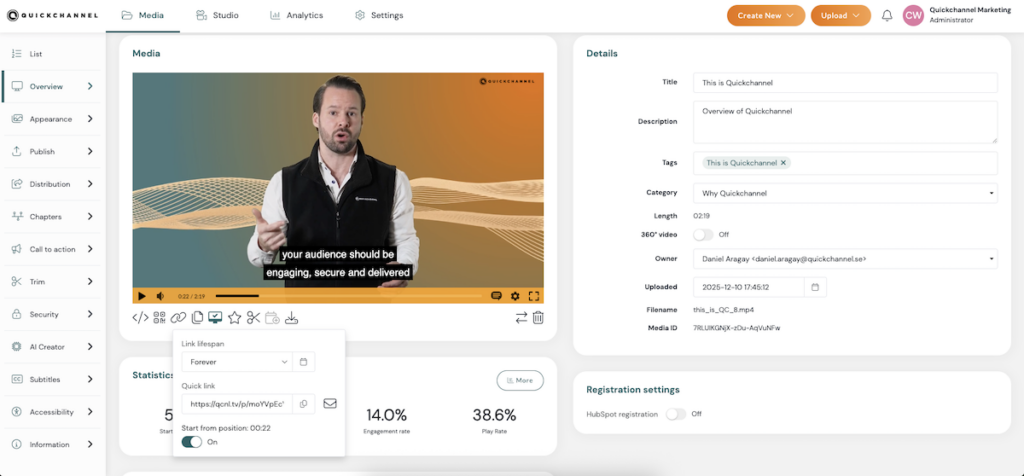
Previously, from the Media list you could easily grab the embed code. Now you also have Quick Link available directly from the overview, replacing what was previously called “Preview link.”
Value for users
- Share content internally or externally in a couple of clicks.
- Reduce back-and-forth when colleagues or partners request access to a specific recording.
- Speed up workflows for support teams, sales, and communications.
Start-from-Position Links
What’s new
When viewing a video, you can now create a Quick Link that starts from a specific timestamp. For example:
- Pause the video at 00:42
- Click Quick Link
- Enable “Start from position 42 seconds”
The generated link will start playback from that exact point.
Value for users
- Share only the most relevant segment of a longer video with colleagues, customers, or partners.
- Improve learning and support by pointing viewers directly to the answer they need.
- Save time for both sender and receiver by eliminating the need to “scrub” through content.
Live Studio Enhancements: better audio confidence & reliability
Audio Level Meter on Microphone Selector
What’s new
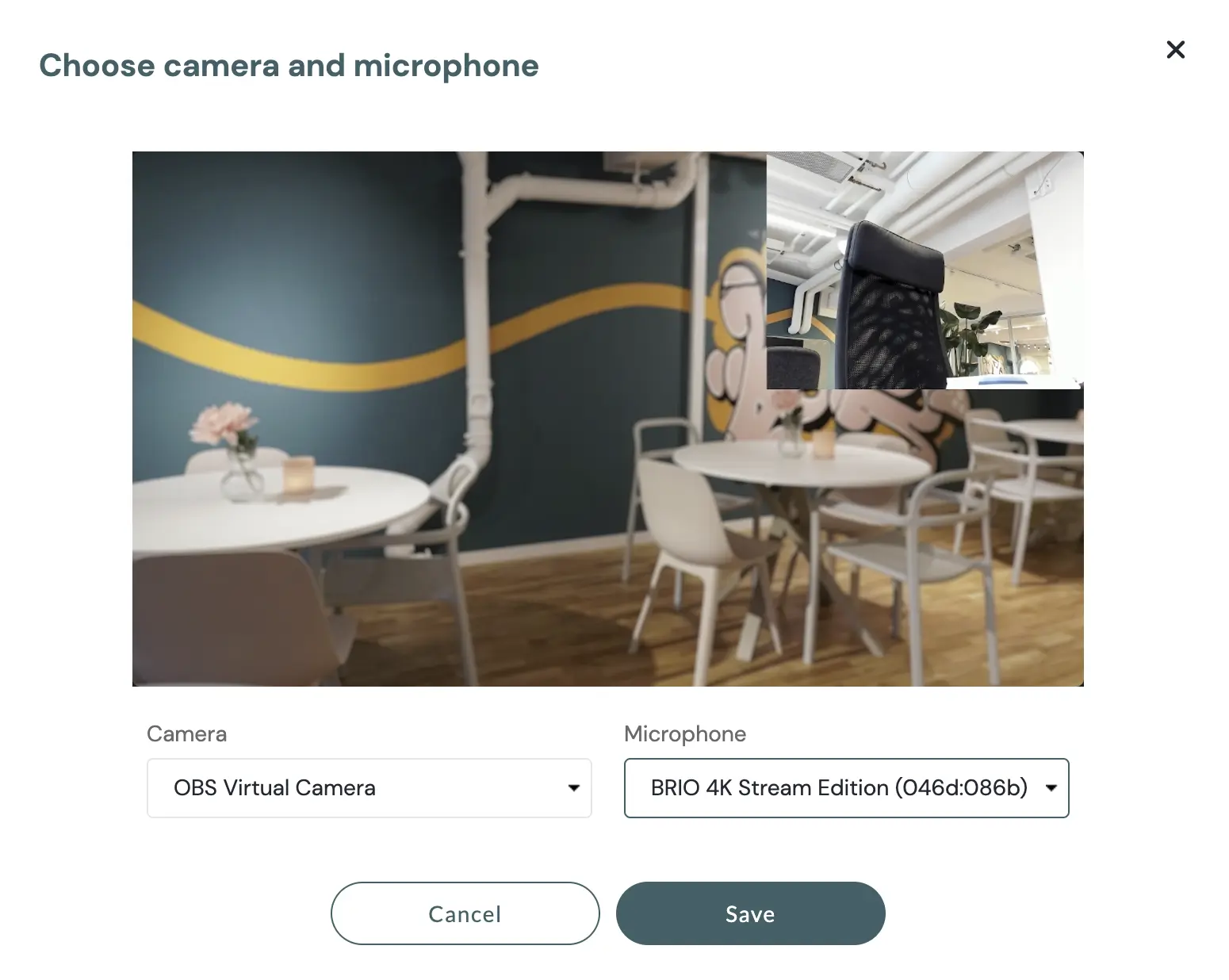
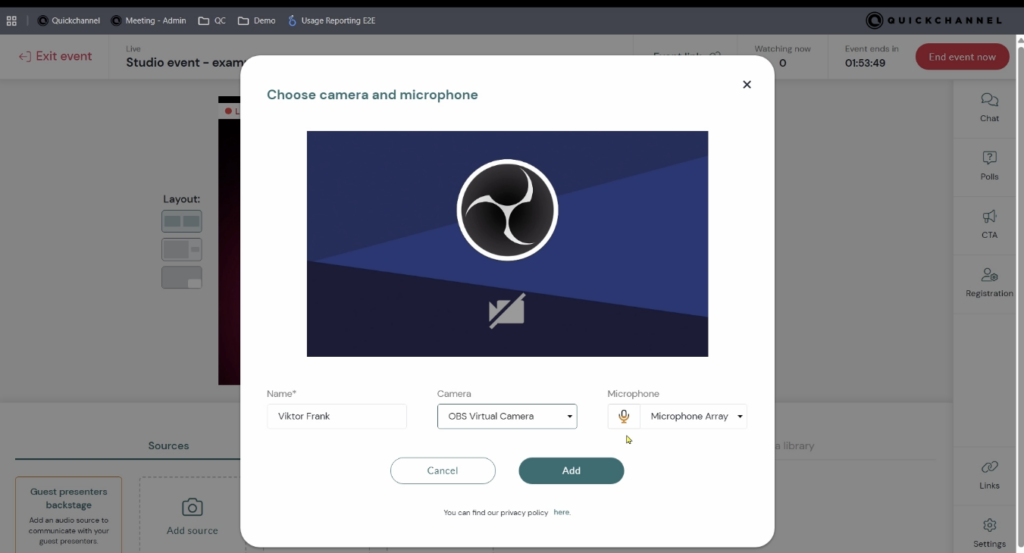
In Live Studio, when you add a camera and microphone, the microphone selector now shows an audio level meter.
This is visible to:
- Producers
- Guest presenters
Value for users
- Immediate visual confirmation that the microphone is working and picking up sound.
- Reduces audio issues and “silent starts” during live sessions.
- Improves professionalism and confidence for presenters and hosts.
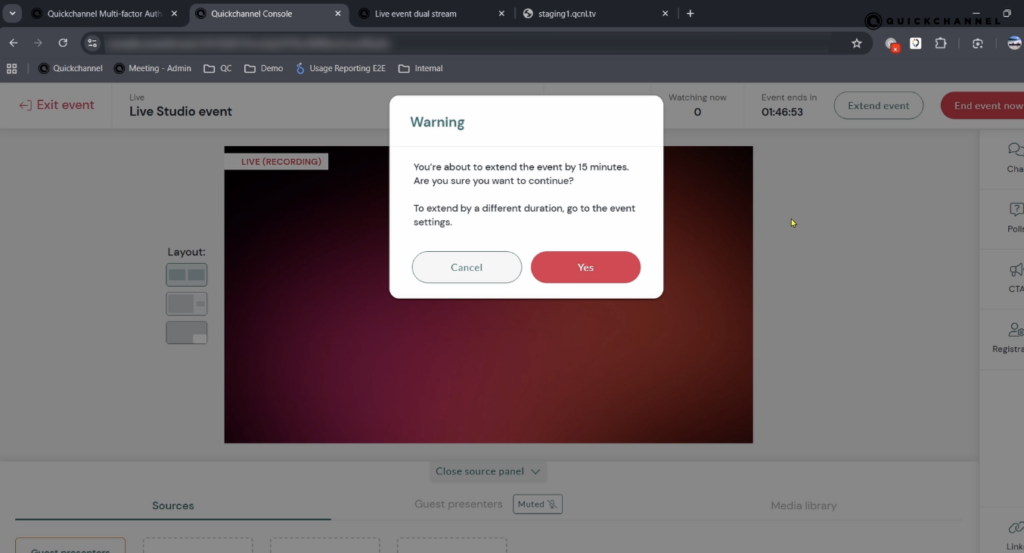
Bandwidth Optimization and Event Extension
What’s new
Live Studio has been optimized to handle bandwidth issues more gracefully during broadcasts. In addition:
- A new “Extend Event” button lets you easily add another 15 minutes to an ongoing broadcast.
- When 15 minutes remain, a pop-up notification appears to warn you that the event time is about to run out.
Value for users
- More robust webinars and live events even on unstable connections.
- Greater control over event duration when sessions run longer than planned.
- Fewer abrupt cut-offs and a smoother experience for both hosts and viewers.
Multi-Factor Authentication (MFA): stronger platform security
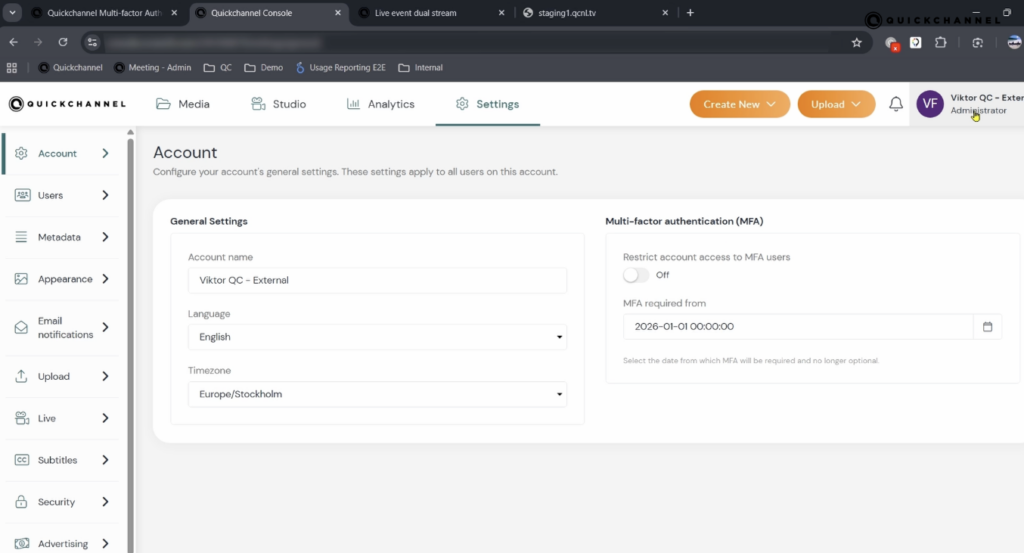
MFA for All Accounts (Admin Setting)
What’s new
In Settings, administrators can now enable multi-factor authentication (MFA) for users logging in with a Quickchannel email and password. When enabled, users must:
- Enter their email and password
- Confirm a six-digit code from an external authenticator app, such as:
- Microsoft Authenticator
- Google Authenticator
- Authy, or similar apps
Value for users and organisations
- Adds a dual security layer to protect access to sensitive video content and configuration.
- Reduces risk of unauthorized access through compromised passwords.
- Supports compliance and internal IT security requirements.
User-Level MFA Control in Profile
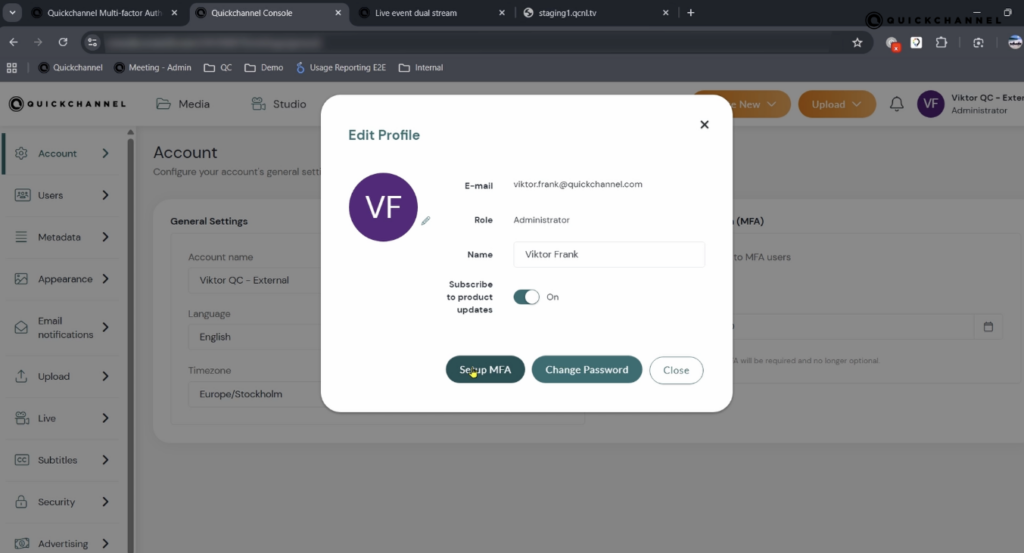
What’s new
In addition to the admin-level setting, users can now manage MFA from their own profile:
- Go to Profile → Edit Profile
- Set up MFA for their account only
- Or cancel MFA if they no longer wish to use it (subject to admin enforcement policies)
Value for users
- Empowers users who want enhanced security even if MFA is not enforced platform-wide.
- Offers flexibility while still giving admins central control when needed.
- Encourages security best practices without imposing friction for all users by default.
Dual Streams for Live Event: presentation + stage in the same player
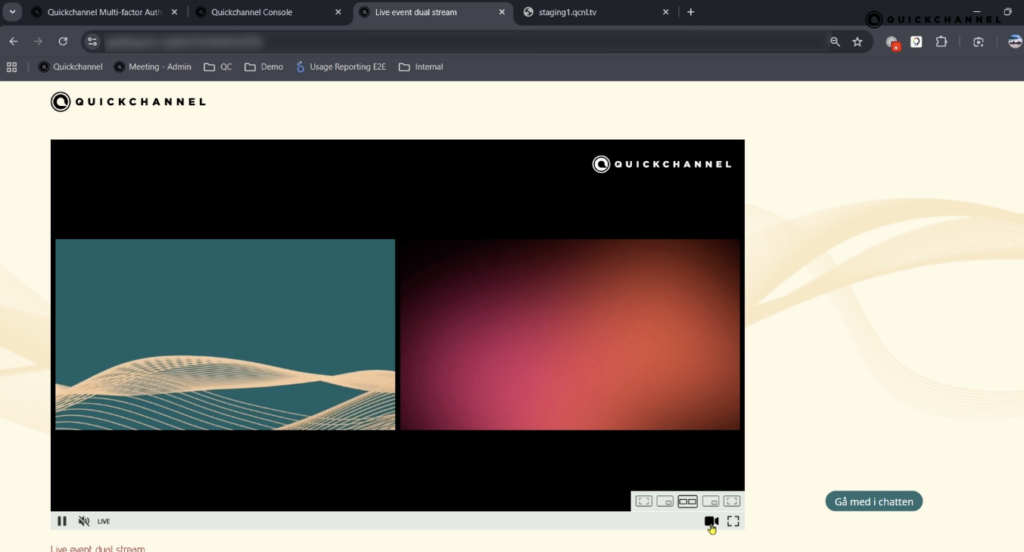
What’s new
Quickchannel Live Event now supports dual RTMP streams in a single player. This is ideal for:
- One stream capturing a speaker on stage
- A second stream for presentation slides or screen share
For the viewer:
- Both streams are visible in the same player
- They can choose their preferred layout (e.g. side-by-side, picture-in-picture, or full screen of one stream)
- Audio is carried on the main channel, while the secondary stream is presentation-only (no audio)
Value for users
- Offers a more professional, conference-like experience without complex setups.
- Gives viewers control over how they want to consume the content (e.g. focusing on slides vs speaker).
- Simplifies multi-source production while keeping the viewer experience seamless.
Guided onboarding: built-in user guide
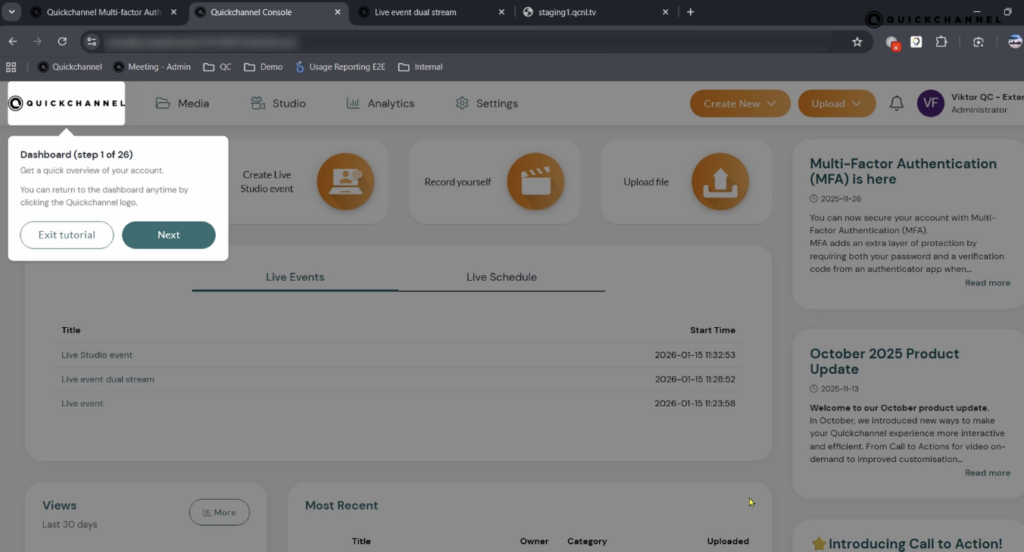
What’s new
New users logging into the platform now see a pop-up user guide. This guide is also always accessible via the:
- “Getting started tutorial” link in the interface
It walks through different parts of the Quickchannel platform and explains:
- Key buttons
- Core functionalities
- Primary workflows
Value for users
- Reduces onboarding time for new team members.
- Helps organisations adopt more of the platform’s capabilities quickly.
- Lowers dependency on separate training sessions and support.
Quickchannel Meeting updates: clearer communication & smoother governance
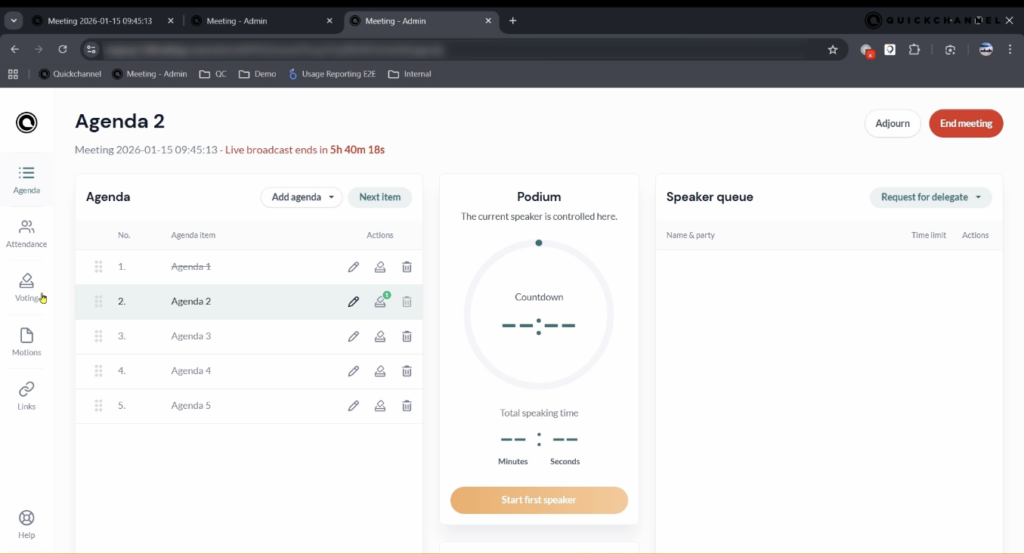
Quickchannel Meeting solution has seen continuous improvements this quarter, focused on transparency, participation, and branding.
Structured Advanced Settings
What’s new
Under Settings → Advanced settings, options are now grouped by what they affect (e.g. projector view).
Example: a new option to show substitutes on the projector view.
Value for users
- Easier to understand and configure advanced behaviors.
- Less risk of misconfiguration as related settings are bundled logically.
- Better control over what is shown to the public and participants.
Enhanced Projector View
What’s new
Several additions improve how information is displayed in the projector view:
- Guest speaker titles: Titles assigned to guest speakers are now shown on the projector.
- Substitutes display (optional): You can choose to show substitutes on the projector view.
Value for users
- Audiences clearly see who is speaking and in what capacity.
- Increases transparency and trust in formal or public meetings.
- Supports more structured, professional presentations.
Logo on Delegate Login Page
What’s new
If you have uploaded a logo in your meeting settings, that logo is now displayed on the delegate login page.
Value for users
- Delegates immediately know they are in the right place.
- Reinforces organisational identity and professionalism.
- Reduces confusion, especially for public or external participants.
Voting Enhancements: free text input
What’s new
For multi-select voting, you can now:
- Provide standard options
- Allow delegates to submit a free text input as an additional choice
Value for users
- Captures more nuanced opinions and suggestions beyond pre-defined alternatives.
- Makes the meeting tool more flexible for discussions, consultations, and open-ended questions.
- Enhances participation and engagement.
Custom Adjournment Messages
What’s new
When a meeting is adjourned using the adjourn button:
- You can now write a custom message (e.g. “15-minute coffee break, back at 12:00”).
- This message appears on the projector view and as a pop-up in the delegate app.
Value for users
- Keeps everyone aligned on timing and next steps.
- Reduces confusion during breaks or interruptions.
- Supports more polished, participant-friendly meeting management.
Agenda Numbers in Broadcast Chapter List
What’s new
When a meeting is broadcast live, the agenda numbers are now included in the chapter list of the recording.
Value for users
- Makes it easier to navigate to specific agenda items in the recording.
- Improves transparency and traceability for formal decision-making processes.
- Saves time for those reviewing or auditing meeting content.
Public Meeting API Documentation: Easier Integrations
What’s new
The Meeting API documentation is now publicly available at:
This API enables integrations between Quickchannel Meetings and third-party systems.
Value for users
- Simplifies connecting Quickchannel meetings with existing tools and workflows.
- Enables automation for tasks such as meeting creation, participant management, or data export.
- Supports developers in building custom solutions without lengthy onboarding or private documentation access.
Looking Ahead
These Q4 2025 updates are aimed at:
- Making your video content more interactive and actionable
- Strengthening security and reliability across the platform
- Supporting professional-grade live events and meetings with better control, branding, and transparency
To get immediate value:
- Experiment with Call to Actions in both VOD and Live Studio.
- Enable MFA for increased account security.
- Use Quick Links with timestamps to speed up internal and external sharing.
- Explore the Quickchannel Meeting enhancements to run clearer, more engaging, and more transparent political meetings.
For ongoing updates, follow Quickchannel on LinkedIn and keep an eye on in-platform news to stay informed about new capabilities as they are released.